To a lot of you this is easy, the basic of basics. But to a someone just starting in Visual Basic it's confusing.
So here is step by step instructions, and a source code, on how to connect to the net and retrieve a websites HTML using Winsock.ocx.
Right first we start up Visual Basic and select a Standard EXE.
Now to this we add a CommandButton and a TextBox. Adjust the size and placement of the Components so it looks like this...
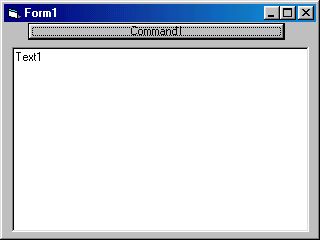
The command button is to tell the program to execute the code and the text box is to display the returned HTML.
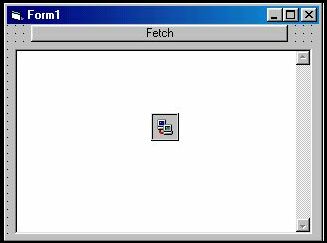
Now Select the text box and look under properties for Multiline and select True. Now look for Text and delete the Text1. And finally look for Scrollbar and select 2- Vertical (this will make viewing the returned HTML a little easier).
Now select the CommandButton and look under properties for Caption and change the 'Command1' to 'Fetch'.
Now right click on the Components list (the bar on left you clicked to add your command Button and Text Box), select Components... and scroll down until you see 'Microsoft Winsock Control' and tick the box next to it, then click Apply and then OK. Now double click the newly added icon to add the Winsock to your program.
Your form should now look like this
Now we double click on the command button and this should bring up the code window with the following text
Private Sub Command1_Click()

End Sub
Your cursor should be between the two lines of text.
Now we are going to tell the program that when the button is pressed we want winsock to connect to a server (For this example we shall use www.microsoft.com as our test site). So we use the command 'Winsock1.Connect "microsoft.com", 80'.
The first part tells winsock to connect, the next part tells it what server to connect to, and the number at the end is which port on the remote server we want it to connect on.
Next we add a sub routine for what we want winsock to do once it has connected. So on after the 'End Sub' we start a new line and put 'Private Sub Winsock1_Connect()' and press Enter.
Your compiler should automatically add the 'End Sub'.
Now in here we tell winsock to send the command to the server that tells it to send us the HTML, and that command is...
Winsock1.SendData "GET / HTTP/1.0" & vbCrLf & vbCrLf
The first part tells winsock to send the following data, the GET is a http request telling the remote server that the program is GETting a file. The / tells the server to send the default page (index.html usually but can also be .htm, .php, etc) and HTTP/1.0 tells it the of request it is. The two VbCrLf's tells the server that thats the end of the request.
So now our code page looks something like this
Private Sub Command1_Click()
Winsock1.Connect "microsoft.com", 80
End Sub

Private Sub Winsock1_Connect()
Winsock1.SendData "GET / HTTP/1.0" & vbCrLf & vbCrLf
End Sub
At this point I must add that the GET must be in capitals as must the HTTP.
Now we tell our program what to do with the data when it arrives and for that we need a new sub routine after the Winsock1_Connect sub routine. The header for this sub routine is...
Private Sub Winsock1_DataArrival(ByVal bytesTotal As Long)
Once again the compiler will automatically add the End Sub and place the cursor in the middle.
Right, now we tell winsock to get the data using Winsock1.GetData as follows
Winsock1.GetData Wdata, vbString
After the command we give a name to the data recieved (Wdata in this case) and then we tell it how to save the data, in this case as a string.
Next we need to do a small piece of string manipulation to make the data appear correctly in our text box, and this is done using
Wdata = Replace(Wdata, VbLf, VbCrLf)
This tells the program to replace all instances of VbLf with VbCrLf otherwise you just end up with stupid blocks in your output rather than it starting on a new line.
After this we tell it to display the data in the text box so...
Text1.Text = Wdata
And finally, and this is very important, We tell it to close the connection. We do this using
Winsock1.Close
Now if you run your program and click the button you should get the HTML for www.microsoft.com displayed in your textbox.
You may also notice some extra lines before the HTML, these are the headers sent from the server. This will be useful for you in your later programs but for now it's just nice to see.
For a source code with lots of commenting and an example of some simple parsing goto PSC.com
|